> ## Documentation Index
> Fetch the complete documentation index at: https://brightdata-ipv6-release.mintlify.site/llms.txt
> Use this file to discover all available pages before exploring further.
# Bright Data Promo Codes
Bright Data offers promo codes to save money on your subscription plans. You can get exclusive discounts on specific products or services by applying a promo code. This guide will show you everything you need to know about the promo codes.
## How to Apply a Promo Code
To apply a promo code to your subscription plan, follow the steps below:
### Step 1. Go to the Billing page
Visit [Bright Data](https://brightdata.com/cp/start) page and sign in to your account.
Click on the [Billing](https://brightdata.com/cp/billing) page on the left navigation bar.
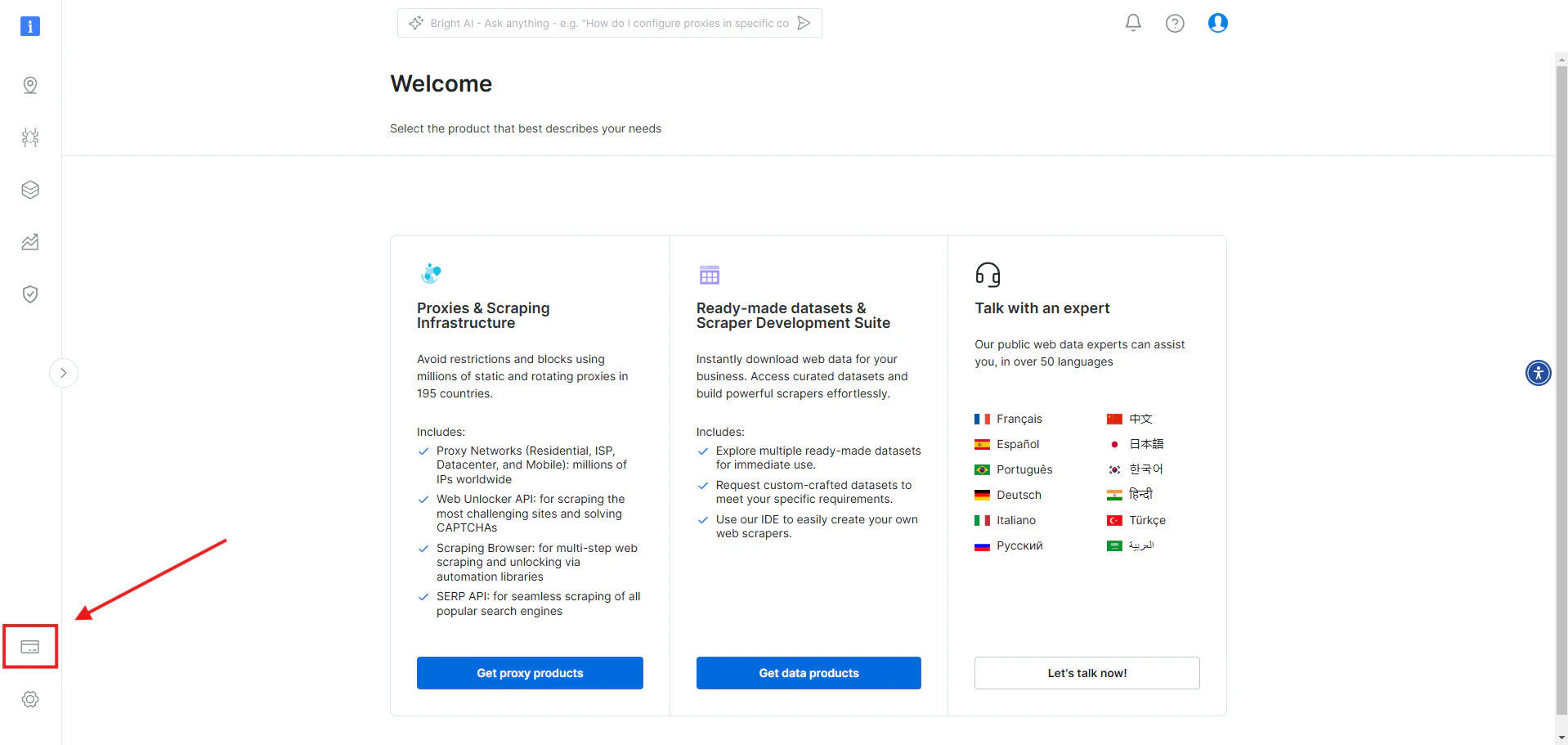 ### Step 2. Apply the Promo Code
You can choose to apply the promo code in one of two ways:
### Step 2. Apply the Promo Code
You can choose to apply the promo code in one of two ways:
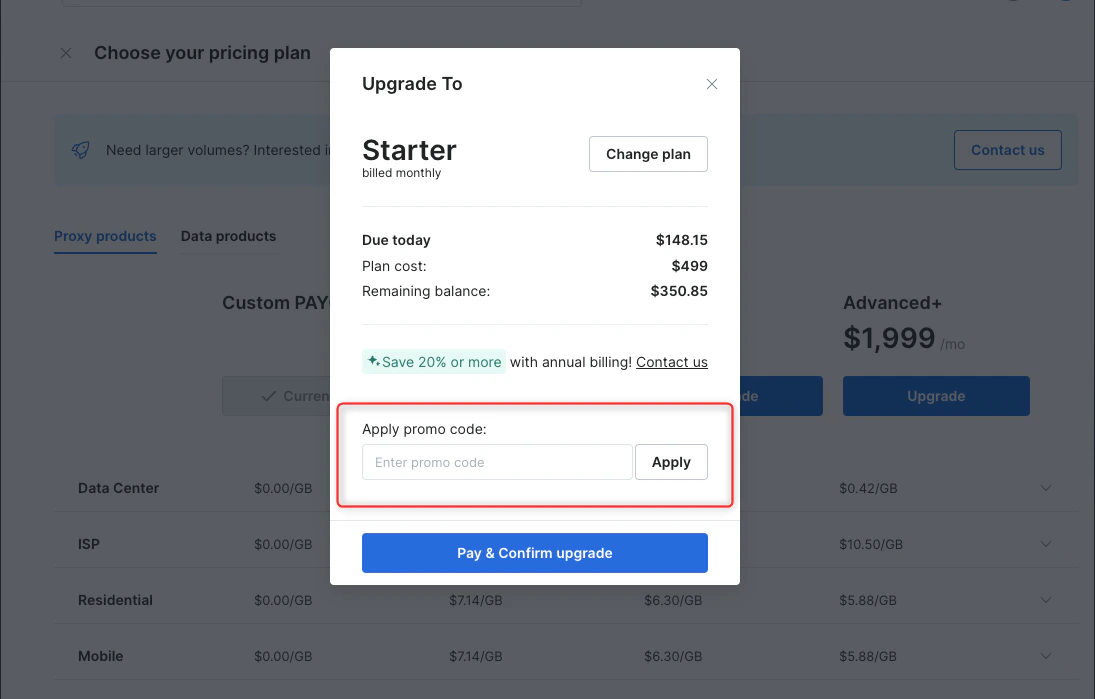
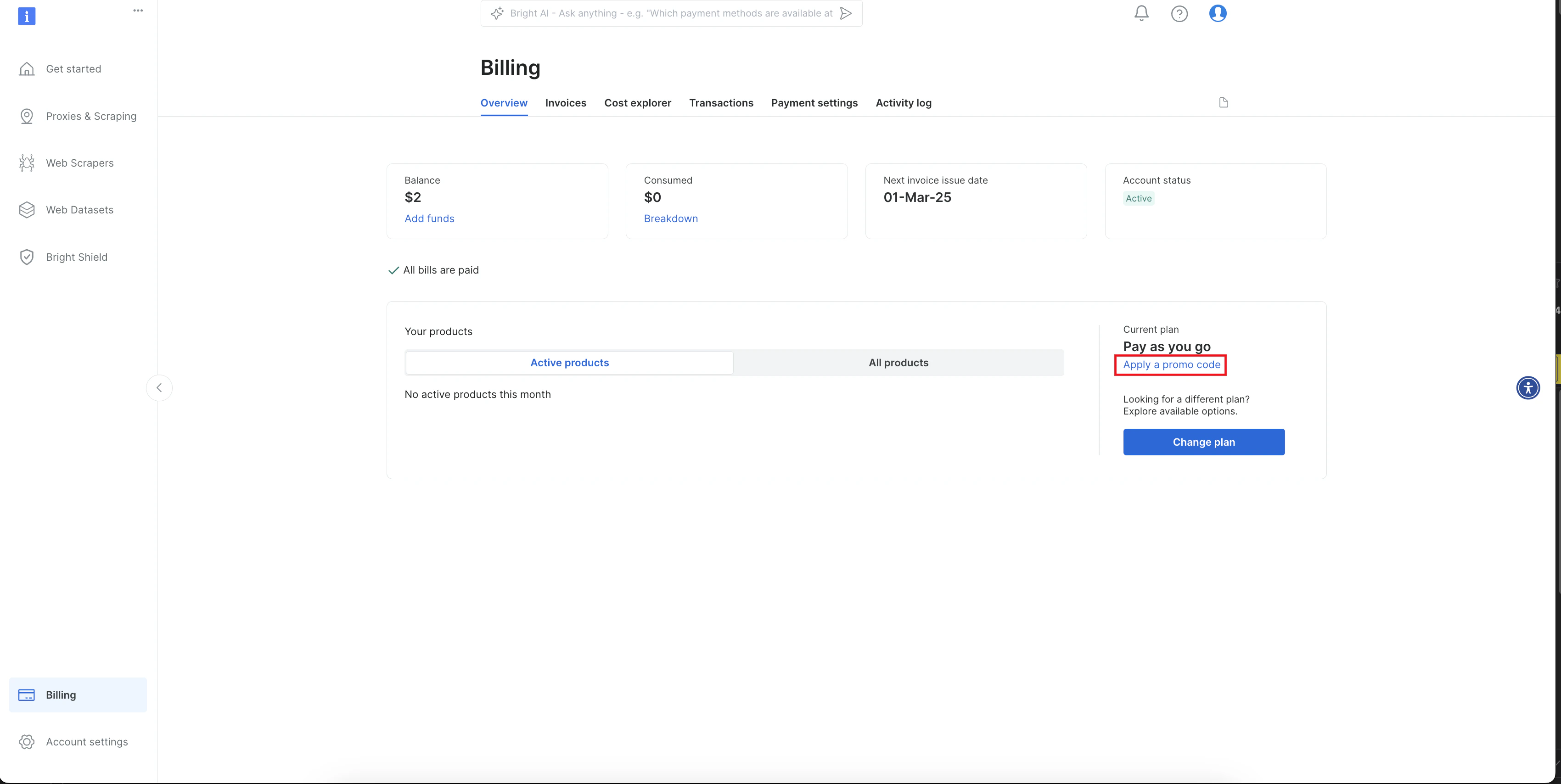 To activate the promotion, enter your code in the “Enter promo code” field, then click “Apply.”
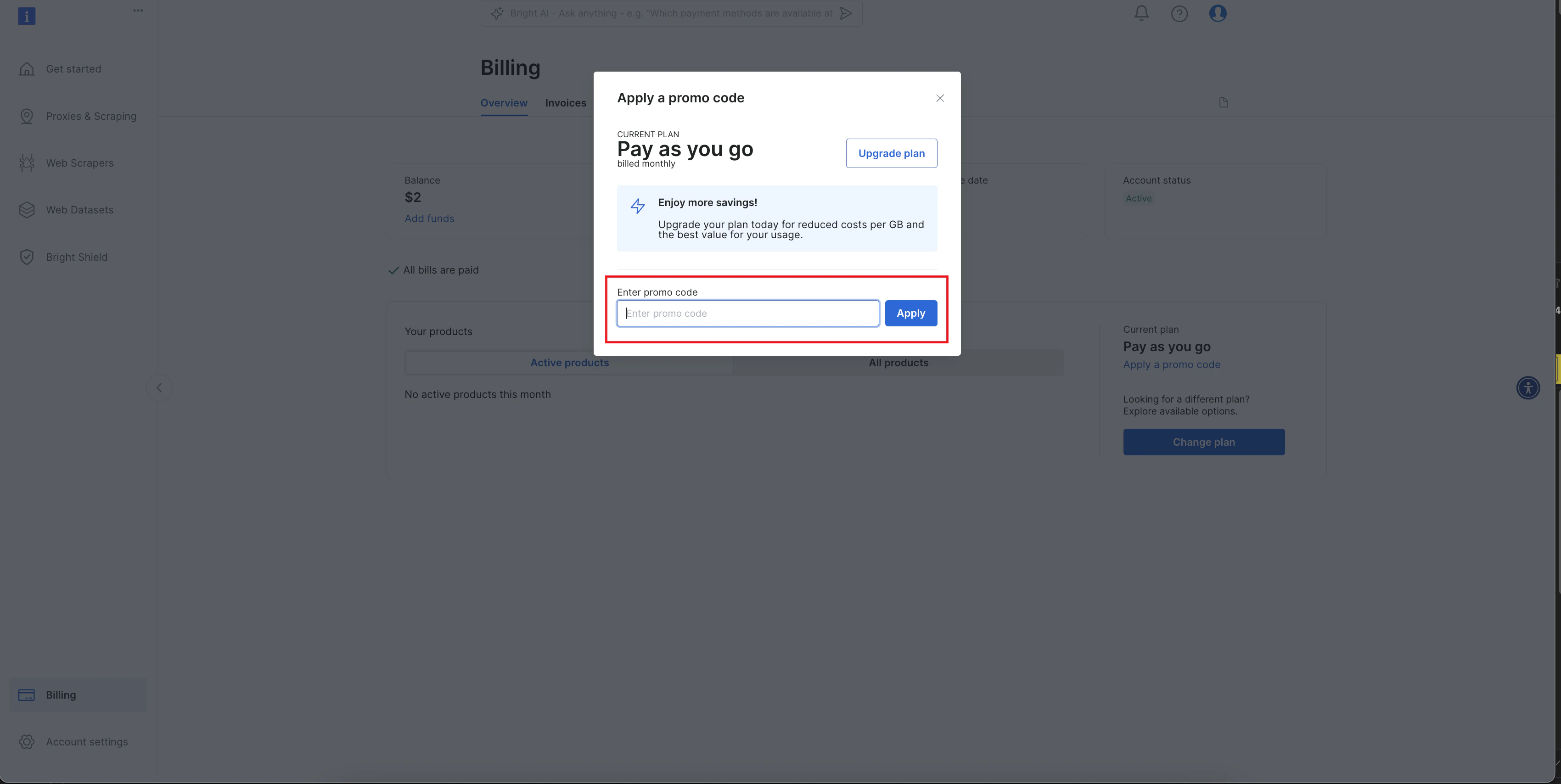 You have successfully activated the promo code, and your new discounted rates have been applied to your plan.
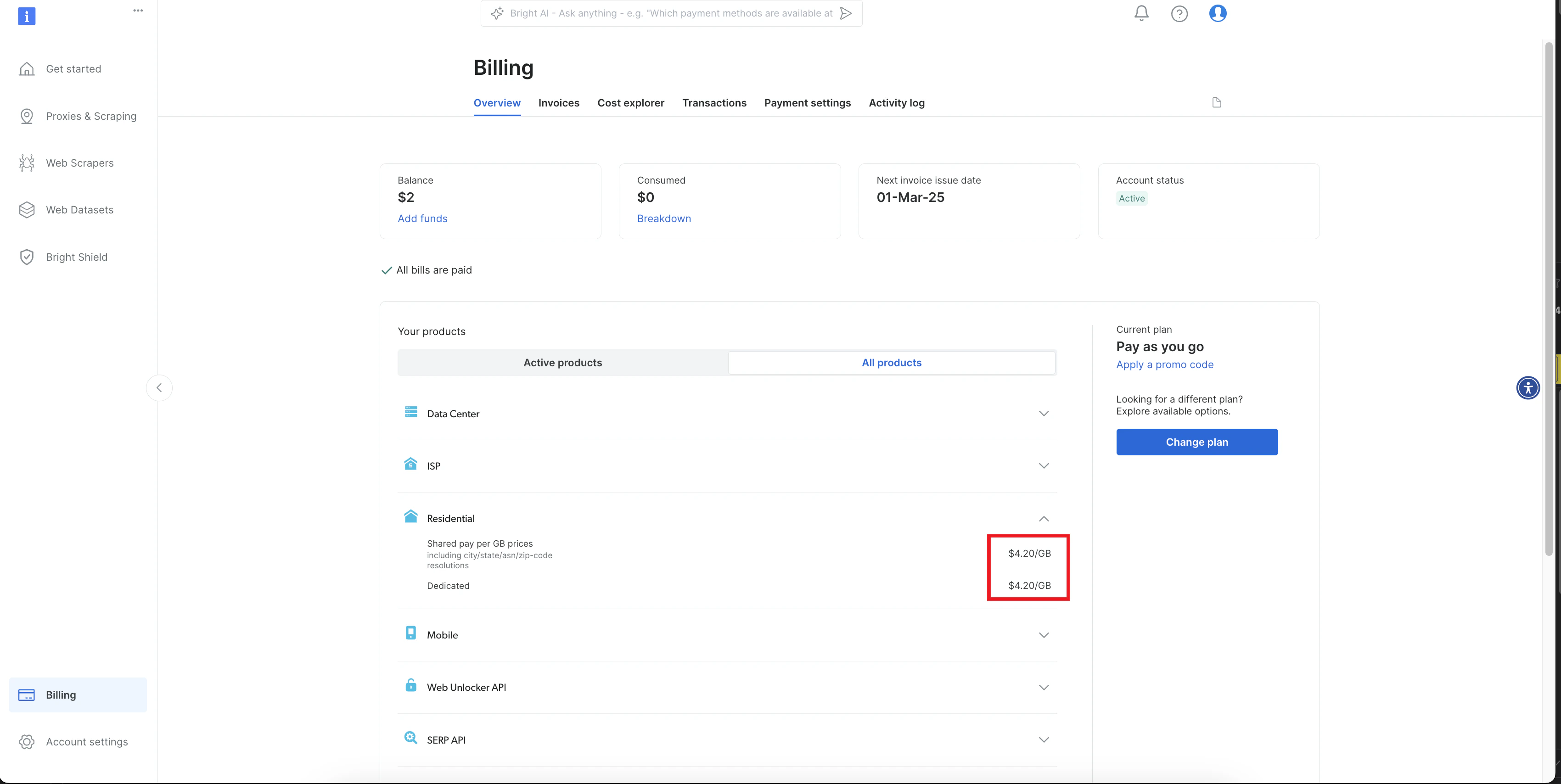
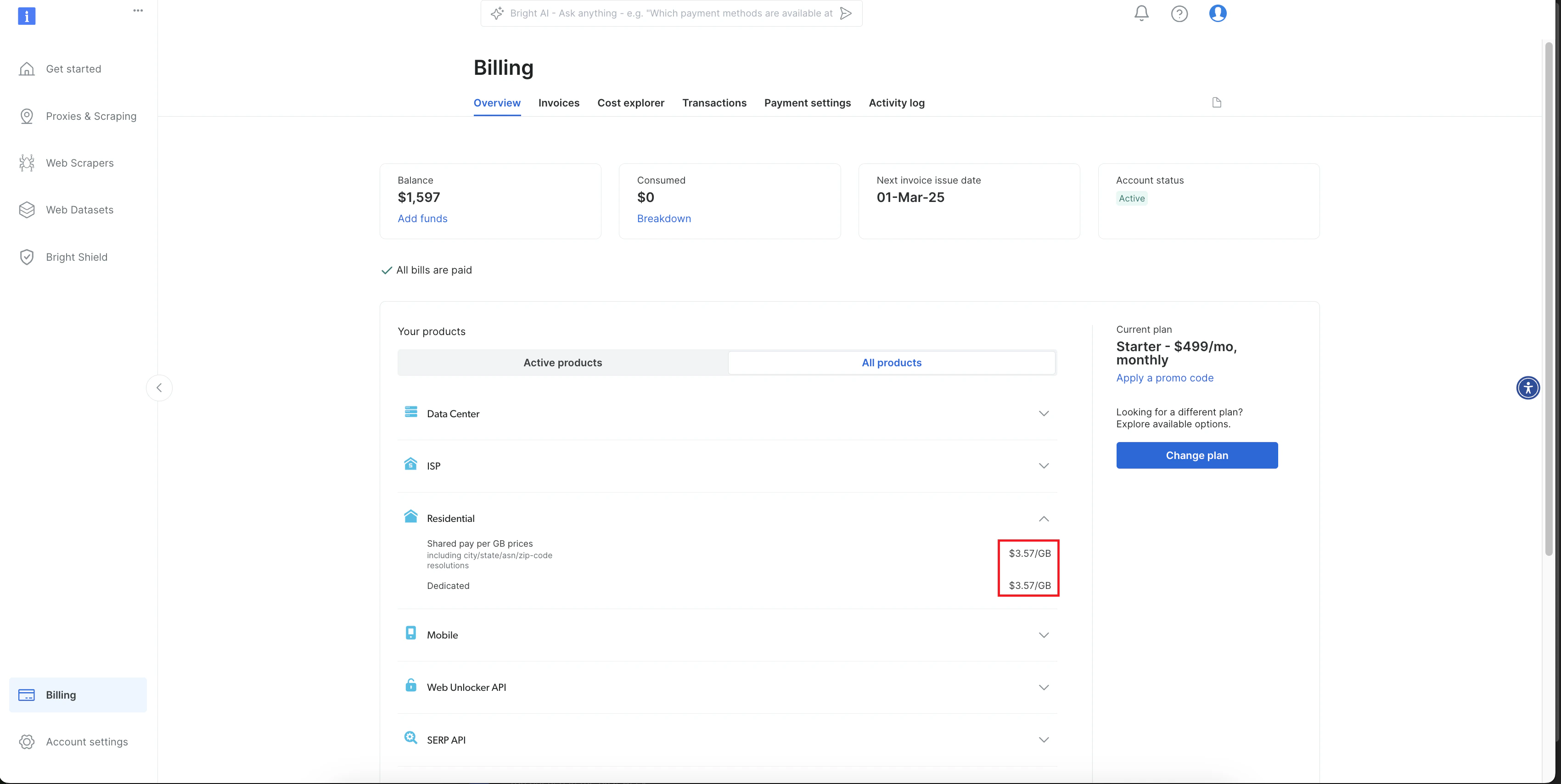
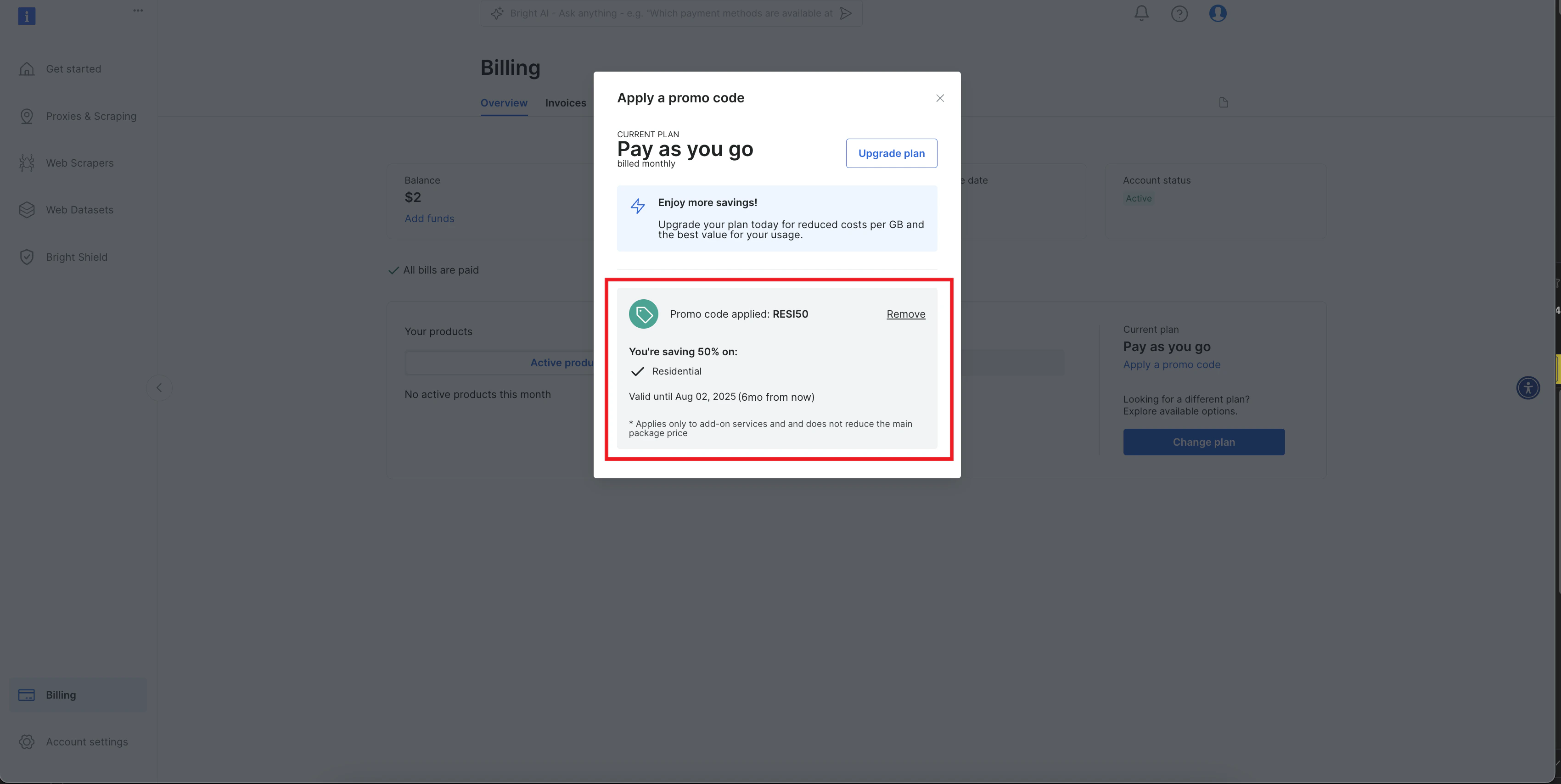 You can confirm the changes by going to the “Overview” tab on the “Billing” page, under “Your products” > “All Products,” to view the discounted prices for the relevant product(s). Or you can simply open a zone and get started!
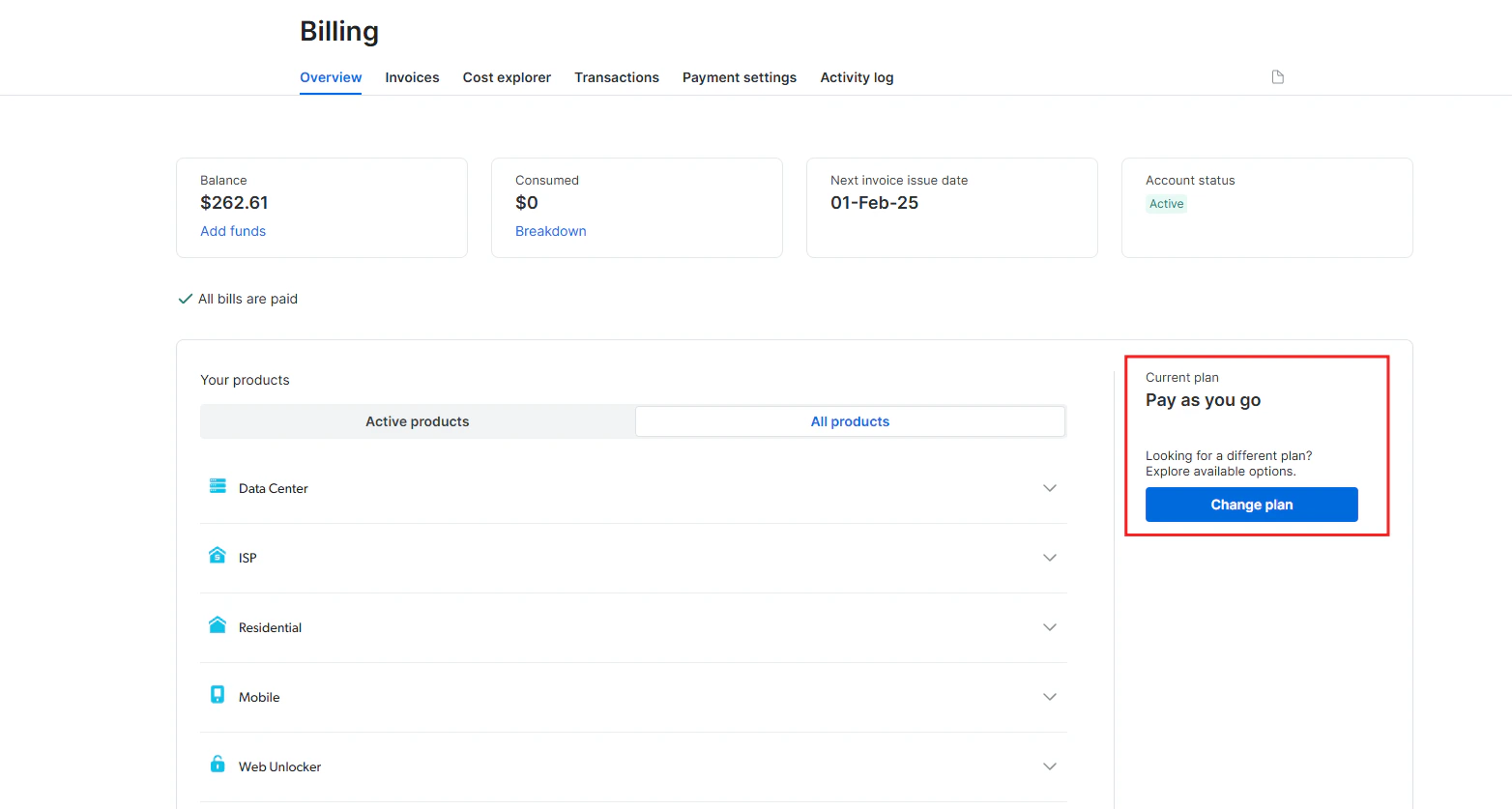
 In [Overview](https://brightdata.com/cp/billing/overview) tab, click on the [Change Plan](https://brightdata.com/cp/pricing_packages) button.
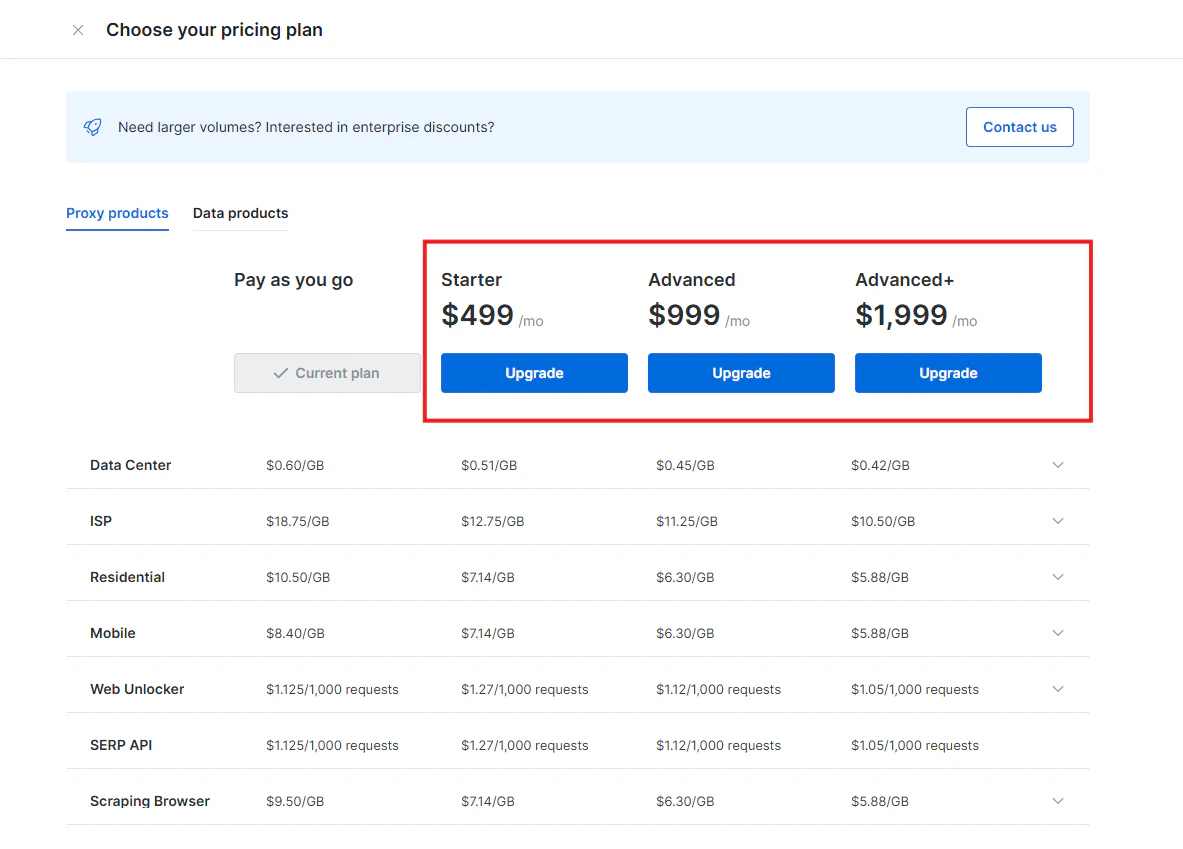
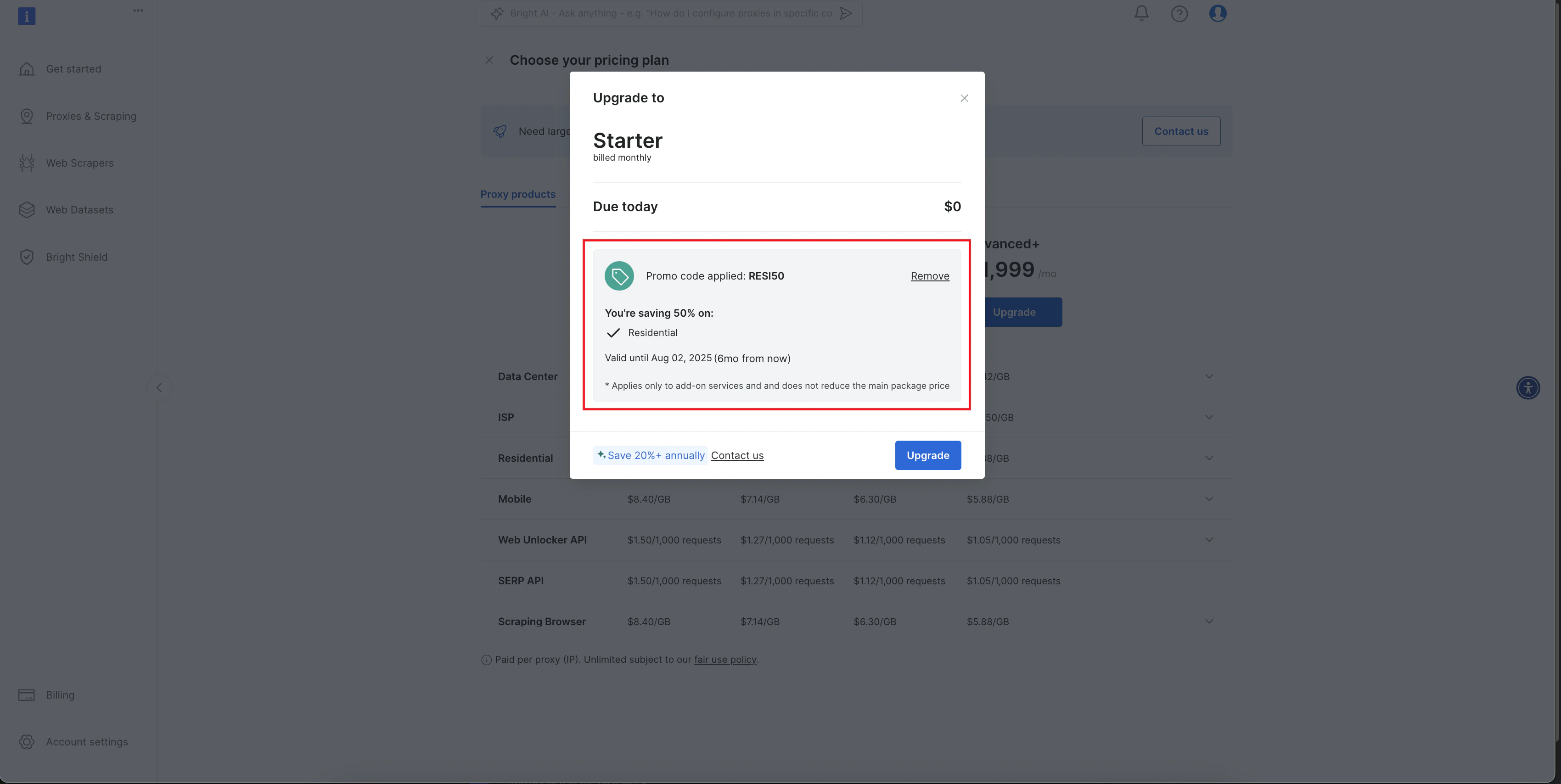
 Select the subscription plan of your choice and click on the "Upgrade" button.
 To activate the promotion, enter your code in the “Enter promo code” field, then click “Apply.” Once you see confirmation of the promo code’s validity, click “Pay & Confirm Upgrade."
 You have successfully activated the promo code, and your new discounted rates have been applied to your plan.
 You can confirm the changes by going to the “Overview” tab on the “Billing” page, under “Your products” > “All Products,” to view the discounted prices for the relevant product(s). Or you can simply open a zone and get started!
 ## FAQs
Yes, you can use both a promo code and the dollar-for-dollar matching promotion together.
The promo code will be applied directly to your subscription plan, reducing the cost of your plan. Additionally, the dollar-for-dollar matching offer will apply when you make your first deposit into your account, and we will match that deposit up to \$500.
The matching dollar for dollar credit works for the first deposit only.
## FAQs
Yes, you can use both a promo code and the dollar-for-dollar matching promotion together.
The promo code will be applied directly to your subscription plan, reducing the cost of your plan. Additionally, the dollar-for-dollar matching offer will apply when you make your first deposit into your account, and we will match that deposit up to \$500.
The matching dollar for dollar credit works for the first deposit only.