

Expand to get your Bright Data Proxy Access Information
Expand to get your Bright Data Proxy Access Information
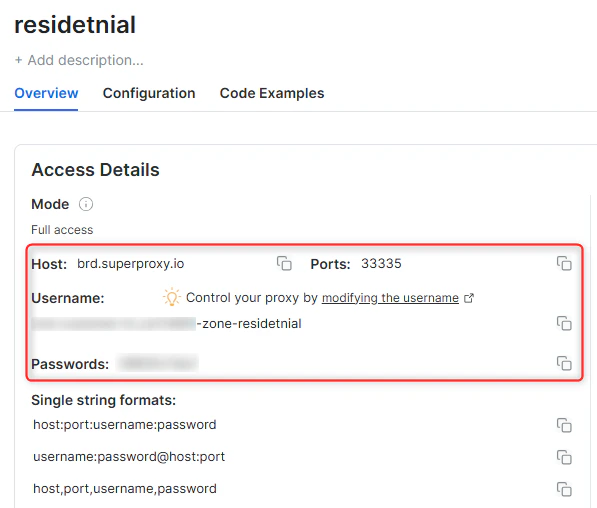
Your proxy access information
Bright Data proxies are grouped in “Proxy zones”. Each zone holds the configuration for the proxies it holds.To get access to the proxy zone:- Login to Bright Data control panel
- Select the proxy zone or setup a new one
- Click on the new zone name, and select the Overview tab.
- In the overview tab, under Access details you can find the proxy access details, and copy them to clipboard on click.
- You will need: Proxy Host, Proxy Port, Proxy Zone username and Proxy Zone password.
- Click on the copy icons to copy the text to your clipboard and paste in your tool’s proxy configuration.
Access Details Section Example
Residential proxy access
To access Bright Data’s Residential Proxies you will need to either get verified by our compliance team, or install a certificate. Read more…Targeting search engines?
If you target a search engine like google, bing or yandex, you need a special Search Engine Results Page (SERP) proxy API. Use Bright Data SERP API to target search engines. Click here to read more about Bright Data SERP proxy API.Correct setup of proxy test to avoid “PROXY ERROR”
In many tools you will see a “test proxy” function, which performs a conncectivity test to your proxy, and some add a geolocation test as well, to identify the location of the proxy. To correctly test your proxy you should target those search queries to:https://geo.brdtest.com/welcome.txt .Some tools use popular search engines (like google.com) as a default test target. Bright Data will block those requests and you tool will show proxy error although your proxy is perfectly fine.If your proxy test fails, this is probably the reason. Make sure that your test domain is not a search engine (this is done in the tool configuration, and not controlled by Bright Data).What is SaleFreaks?
SaleFreaks is known for its automation tools that assist dropshippers in managing their online stores more efficiently. It helps automate various aspects of the dropshipping process, such as product sourcing, order fulfillment, and inventory management. The platform often integrates with popular e-commerce platforms like eBay and Amazon.Steps to integrate SaleFreaks with Bright Data proxies
Step 1. Sign up to Bright Data: 1. After signing up, go to the Bright Data dashboard2. Navigate to the “Proxy & Scraping Infrastructure” section
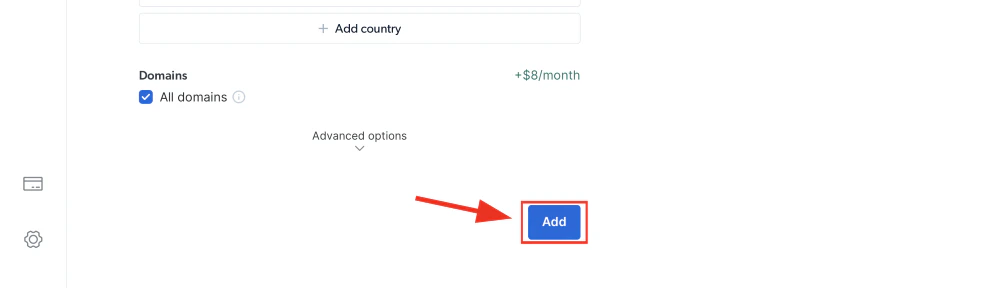
3. Add a new designated Zone for your proxy usage
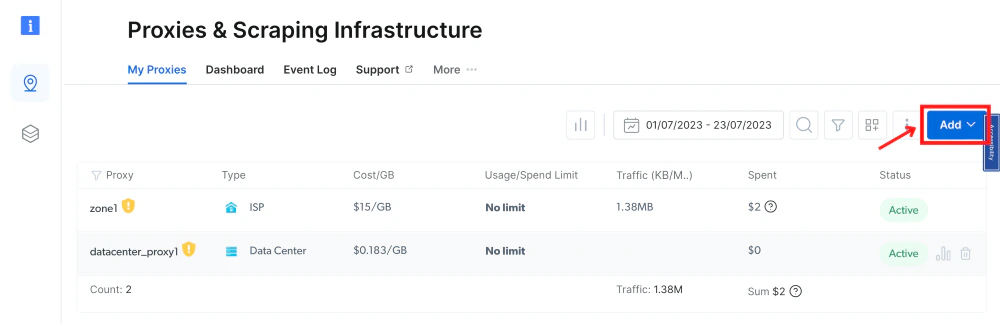
Proxy management interface with active proxies and Add button
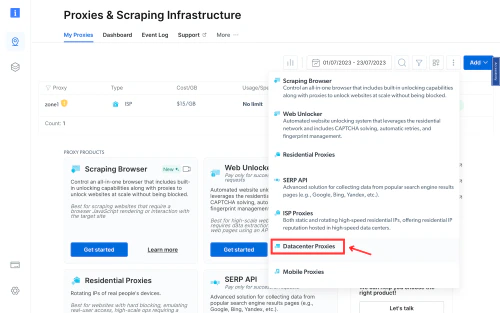
Web interface for managing proxies and scraping infrastructure
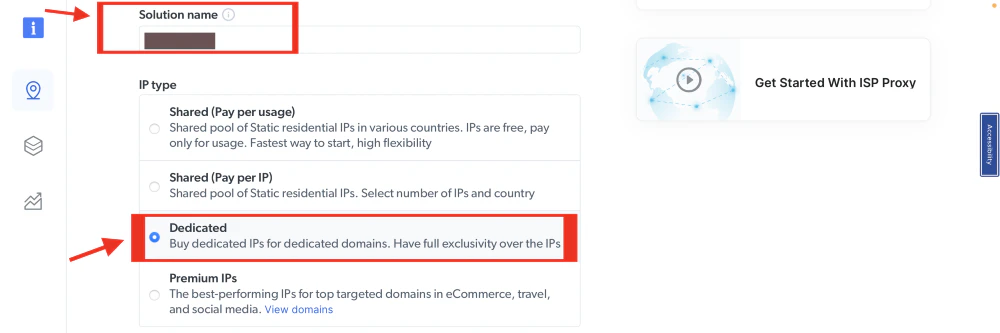
Form to choose IP type, showing Dedicated option selected


Geolocation targeting options for United States and New York City
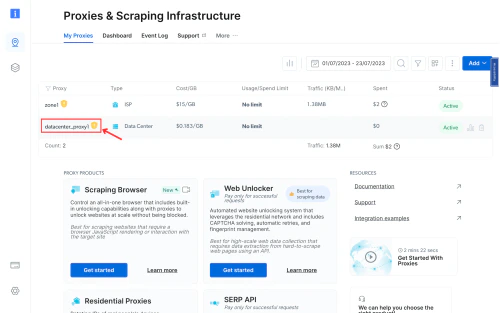
Proxies and Scraping dashboard with various proxy options listed
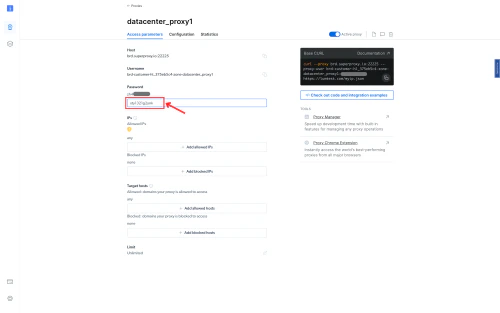
Interface showing proxy configuration settings
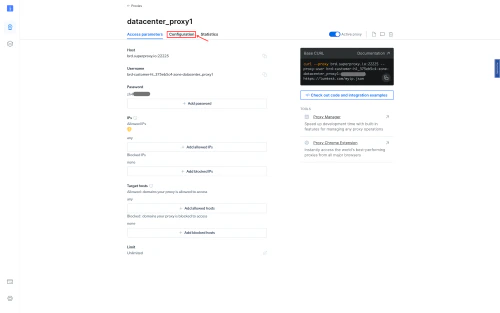
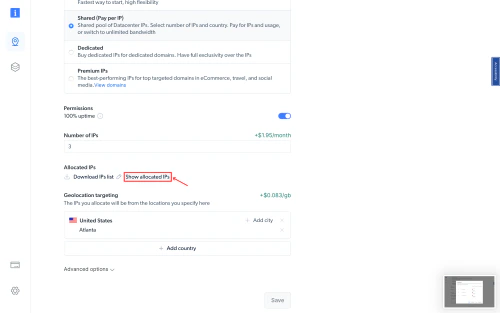
Settings page showing IP allocation details
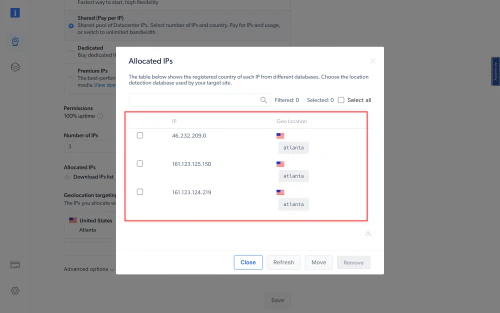
List of IP addresses with geolocation information
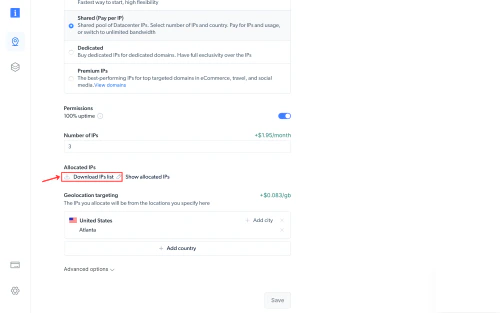
Interface showing IP allocation options and download link
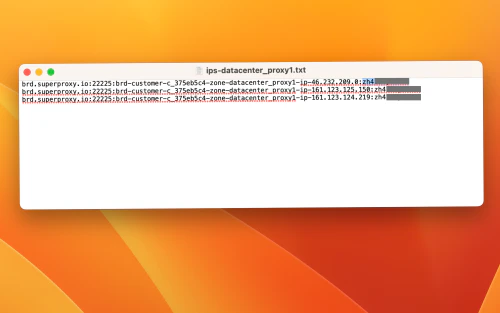
Text file with proxy IP addresses on screen
- Proxy type:
HTTP - Proxy IP: brd.superproxy.io
- Proxy Port:
33335 - Proxy user:
lum-customer-{your_customer_id}-zone-{your_zone}-ip-191.101.212.175 - Proxy password:
zh4*********
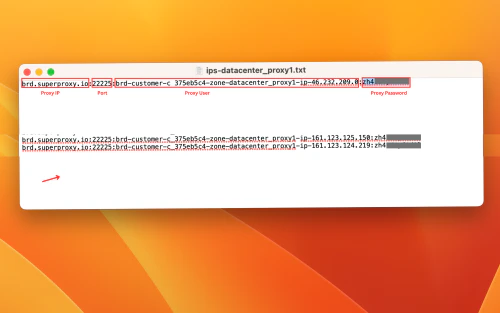
Text file screenshot showing proxy server details
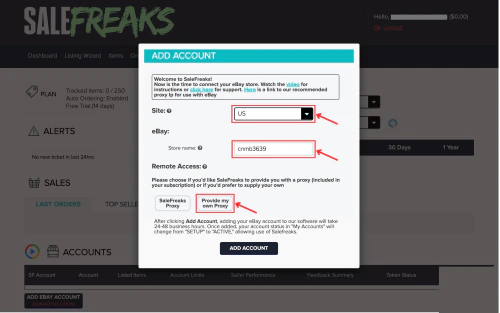
Dialog box for adding an eBay account on SaleFreaks
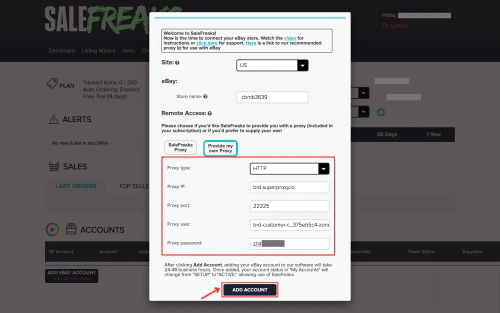
Form for adding eBay account with proxy settings
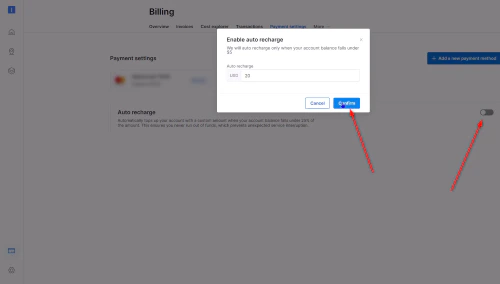
Enable auto recharge confirmation pop-up on billing page.